LG Smart TVs run on webOS, a proprietary system that natively excludes the Google Play Store. This technical incompatibility drives many users to seek workarounds to access Android applications on their television. Before diving into any manipulation, it’s essential to understand what separates webOS from Android TV and evaluate the options that are genuinely functional today.
WebOS vs Android TV: App Store Compatibility
| Criterion | LG TV (webOS) | Android TV / Google TV |
|---|---|---|
| Operating System | webOS (LG proprietary) | Android TV or Google TV (Google) |
| Native Store | LG Content Store | Google Play Store |
| Installation of Android APK | Natively unsupported | Possible (sideload or Play Store) |
| Integrated Chromecast | Absent (AirPlay on some models) | Standard integrated |
| Popular Apps (Netflix, Disney+, YouTube) | Available via LG Content Store | Available via Play Store |
| Access to Third-Party APK Files | Blocked by webOS architecture | Configurable (unknown sources) |
This table highlights the central point: webOS cannot run Android applications. The LG Content Store offers a limited catalog compared to the Play Store, but it covers major streaming services. The gap widens with niche applications, games, or productivity tools that are absent from the LG catalog.
A detailed guide helps to better understand how to install Google Play Store on LG TV by exploring each method step by step, along with the associated hardware prerequisites.
External Android TV Box: The Only Reliable Method for Play Store on LG TV
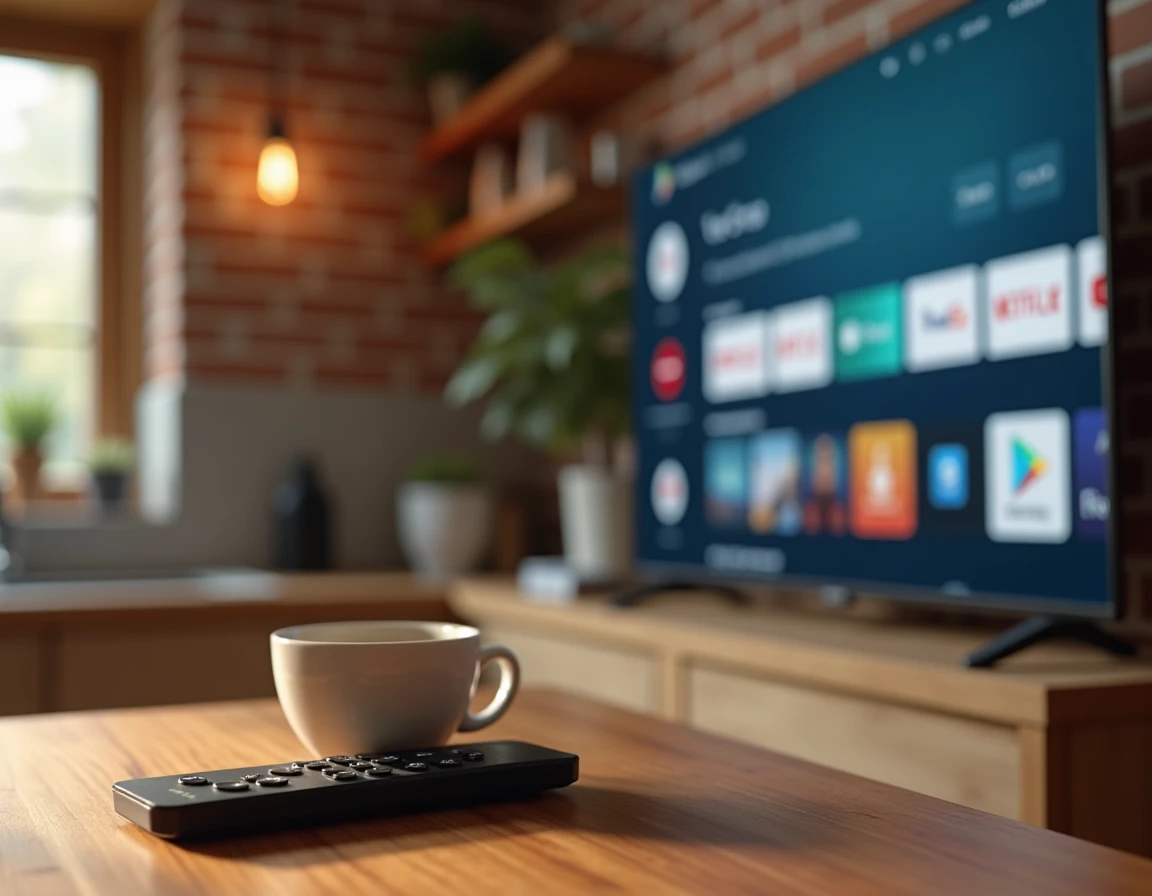
The most stable solution is to connect an external device running Android TV to an HDMI port on the LG TV. This box or dongle becomes the display source, and the television serves only as a screen.
Devices Compatible with Certified Google Play Store
- Chromecast with Google TV: full access to the Play Store, integrated Google TV interface, automatic updates of Google Play Services
- Nvidia Shield TV: high performance, compatibility with Android gaming apps and high-definition streaming services
- Xiaomi Mi Box S: budget-friendly certified Android TV alternative, with pre-installed Play Store and Bluetooth remote
All these devices are certified by Google, ensuring access to the Play Store without blocking. Since 2024, Google has tightened the detection of uncertified devices in Google Play Services. Generic boxes purchased online without certification risk losing access to the store or having certain applications refuse to launch.
The installation is straightforward: plug the box into an HDMI port, select the corresponding source on the LG TV, and then follow the initial setup with a Google account. The LG television retains all its webOS functions concurrently.
Sideloading APK on LG TV: Why This Method No Longer Works
Several older tutorials suggest transferring APK files to a USB stick and then installing them directly on the LG TV. This approach relied on vulnerabilities or functions of webOS that have since been patched.
WebOS does not have an Android runtime environment. Even if an APK file could be copied to the TV’s internal storage, the system has no way to interpret it. An APK requires the Android runtime (ART) and associated system libraries, which are completely absent from webOS.
Since webOS versions 23 and later, LG has also restricted access to certain local network functions that allowed circumventing limitations via browsers or alternative launchers. These updates reduce the effectiveness of methods for casting APKs from a smartphone to the TV.
Android Emulator on PC Connected via HDMI
One variant involves installing an Android emulator (such as BlueStacks) on a computer and then connecting that computer to the LG TV via HDMI cable. This setup technically works, but it has several practical limitations:
- The emulator consumes a lot of CPU and memory resources on the PC
- Navigation with a mouse or keyboard on a living room screen remains awkward
- Google Play Services increasingly detects emulated environments and blocks access to certain DRM-protected applications
This method remains a temporary workaround, not a sustainable solution for daily use.
Casting Android Applications to an LG Smart TV Without Play Store
Casting from an Android smartphone or tablet is an intermediate alternative. Most recent LG Smart TVs support the Miracast protocol or the Screen Share function integrated into webOS.
The principle: the application runs on the phone, and the image is duplicated on the television. The smartphone remains the processing engine. The LG TV displays the content without running any Android application.
This approach works well for video streaming or content viewing. However, latency makes the experience unsuitable for gaming or applications requiring quick interaction. The display quality also depends on the local Wi-Fi bandwidth.
LG TV with Integrated Google TV: A Special Case to Check Before Purchase
Since 2021, LG has marketed certain models of televisions that directly integrate Google TV alongside webOS, depending on markets and ranges. These models provide native access to the Play Store without an external box.
Before purchasing an LG TV with the thought of adding the Play Store later, checking the model specifications remains the most effective precaution. The operating system is indicated on the technical sheet: a model running solely on webOS will never access the Play Store natively, while a model running on Google TV includes it from the first startup.
The LG Content Store meets the needs of most users for streaming. For those looking for a comprehensive catalog of Android applications on a large screen, a certified external box remains the simplest and most stable answer, without risky manipulation or loss of warranty on the television.